Asset Indexing
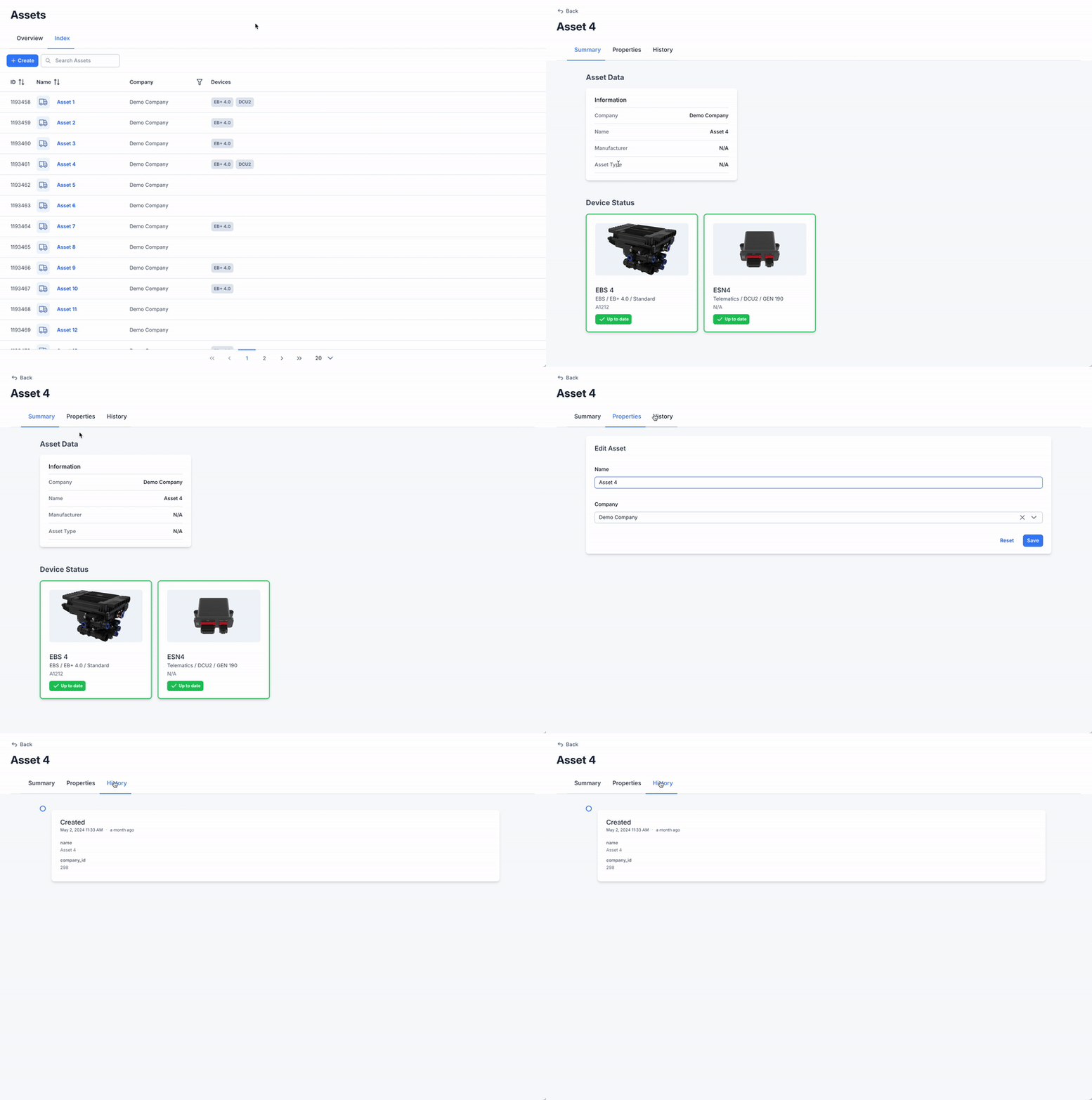
On the Asset Page, the Index tab displays a list view of all your assets. From this table, you can:
View a list of all assets
Create new assets
Edit your assets

You may not have access to creating or editing assets based on your account permissions.

Overview
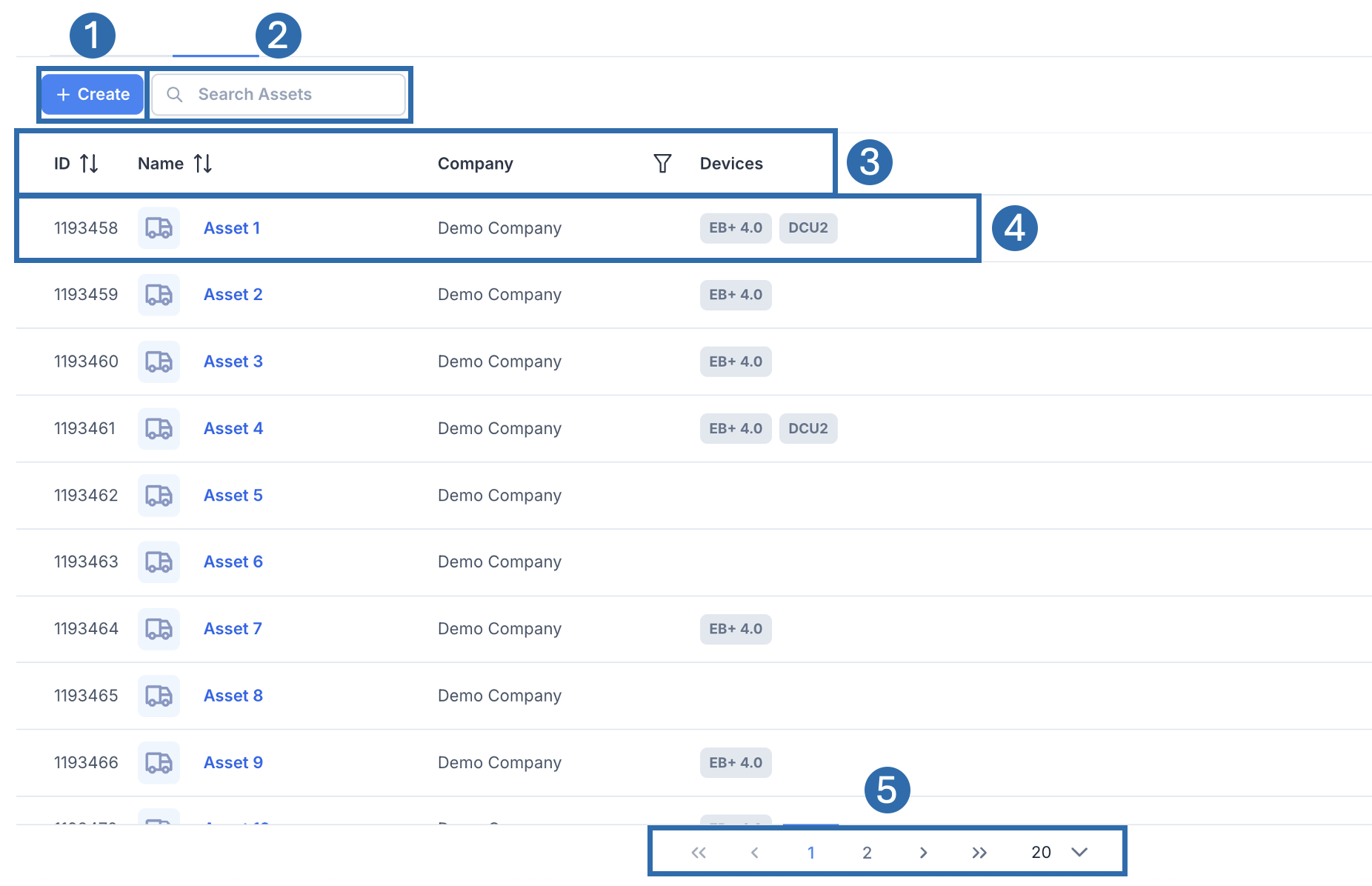 | |
 | Create Button Allows the creation of new assets. You may not see this if you do not have permission. |
 | Search Use the search bar to filter the assets by asset name. |
 | Headers and Sorts Table headers. The headers may be filterable or sortable, depending on the icon alongside |
 | Row Each row represents an asset. Click on the Asset name to enter a detailed view of the asset. |
 | Pagination Controls Pagination splits the data up into pages. Pagination Information Use > to go to the next page. Use >> to go to the last page. Click and change the number (e.g. 20) to change the results per page. |

Filtering and Sorting
The headers may be filterable or sortable, depending on the icon alongside.
 | Sort Icon Headers with this Icon can be clicked to sort the table data. E.g.  Clicking the ID header again will reverse the sort to descending.  Clicking the ID header again will remove the sort.  |
 | Filter Icon Headers with this Icon can be clicked to filter the table data. E.g. 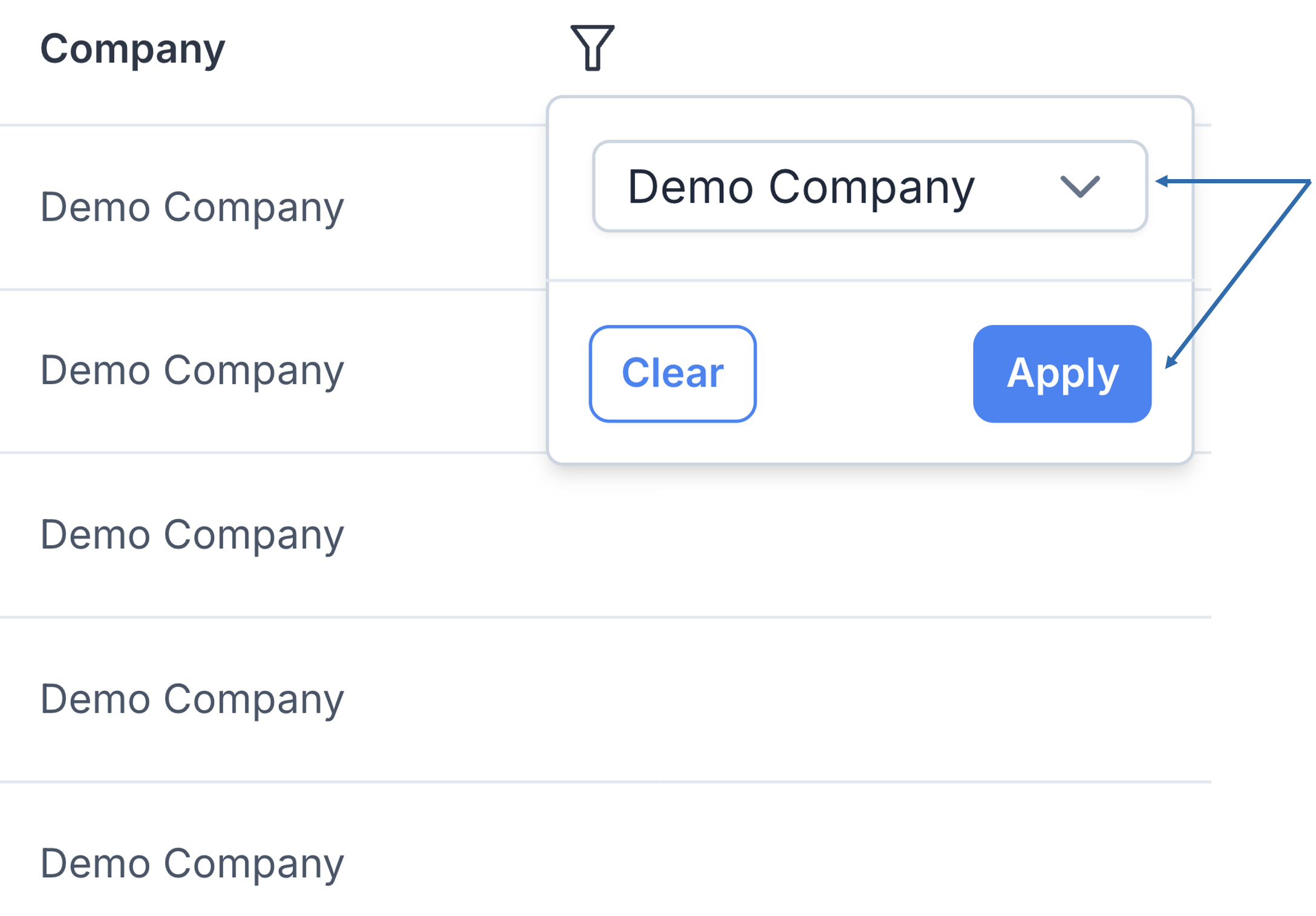 |
See More Asset Details
Click on a row in the Asset Index Table
This will open the Asset View
Use the tabs along the top to change the page.