
Adding or Updating a User
Prerequisites:
You should be on the User Management page.
Adding Users
To add a User:
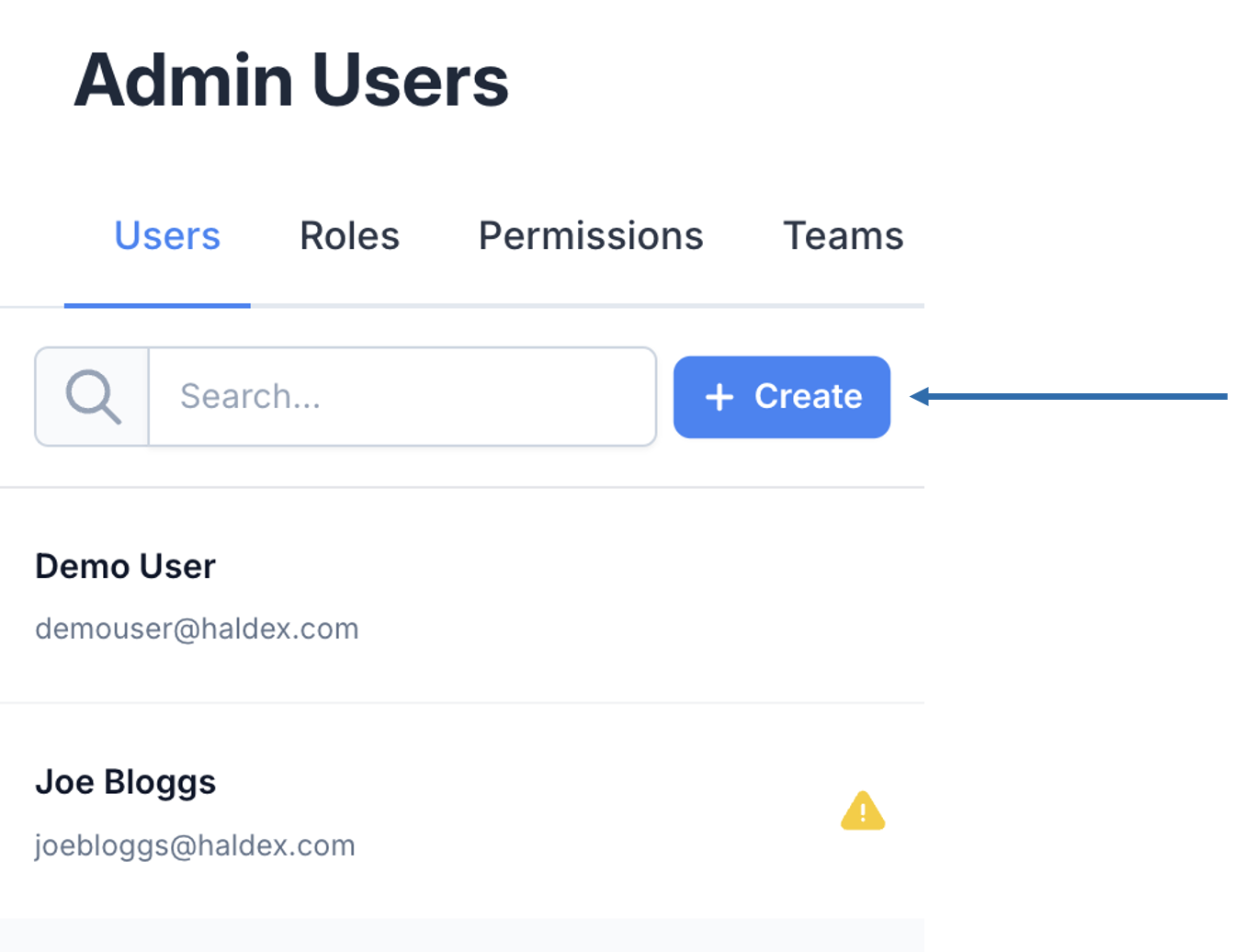
Click the + Create button on the left
A new User Form will open
You can now continue to the Detail Entry section.
Updating a User
To update Users:
Click the relevant user from the list on the left
A User Form populated with the user details will open
You can now continue to the Detail Entry section.
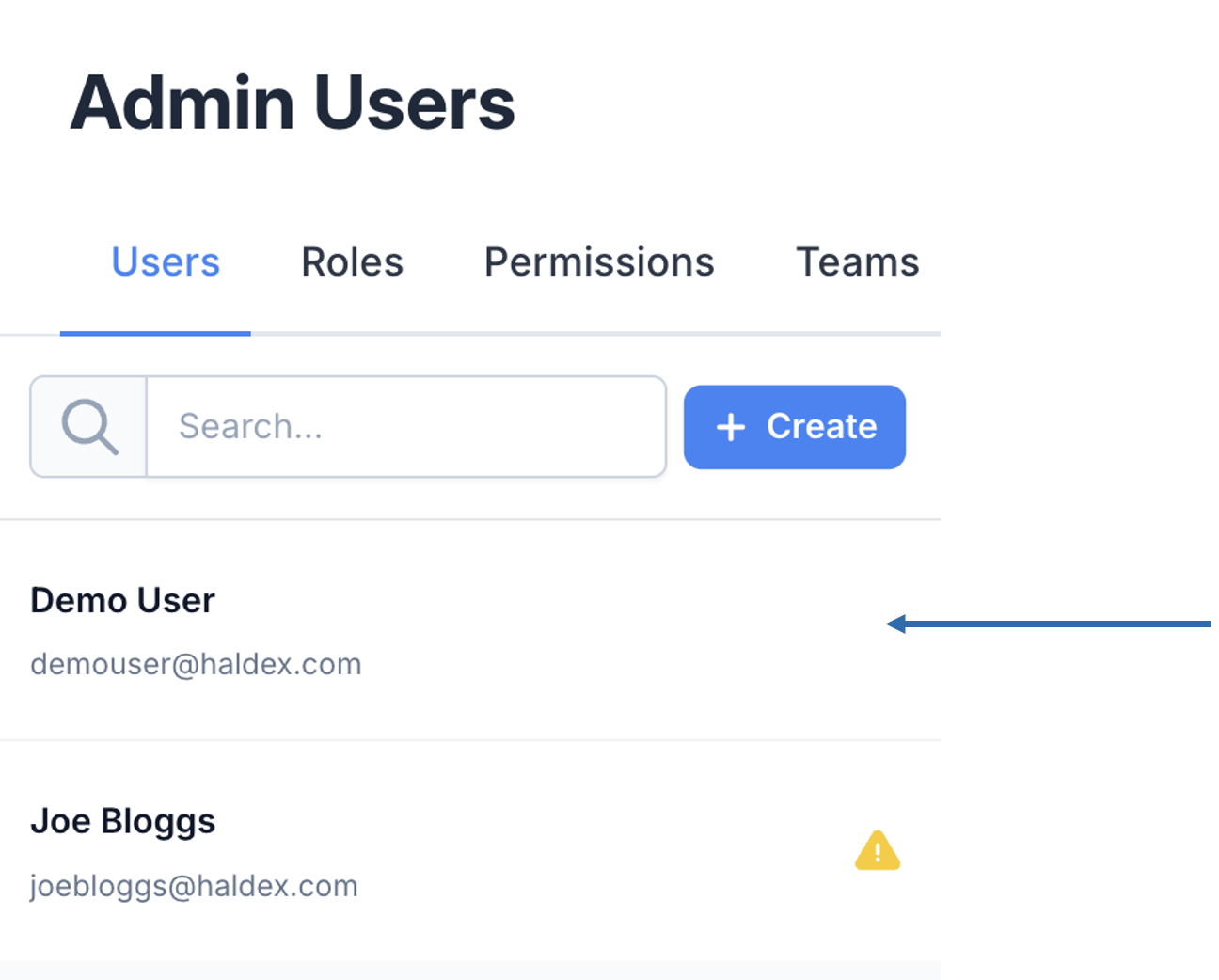

The warning symbol alongside the listed user indicates that some required items (such as mapped roles or companies) are missing from the user.
Detail Entry
When creating or updating a user, the form fields will remain consistent.
Fill out the relevant details
Click Save

After creating a user, you should map any relevant roles or company
Mapping Companies
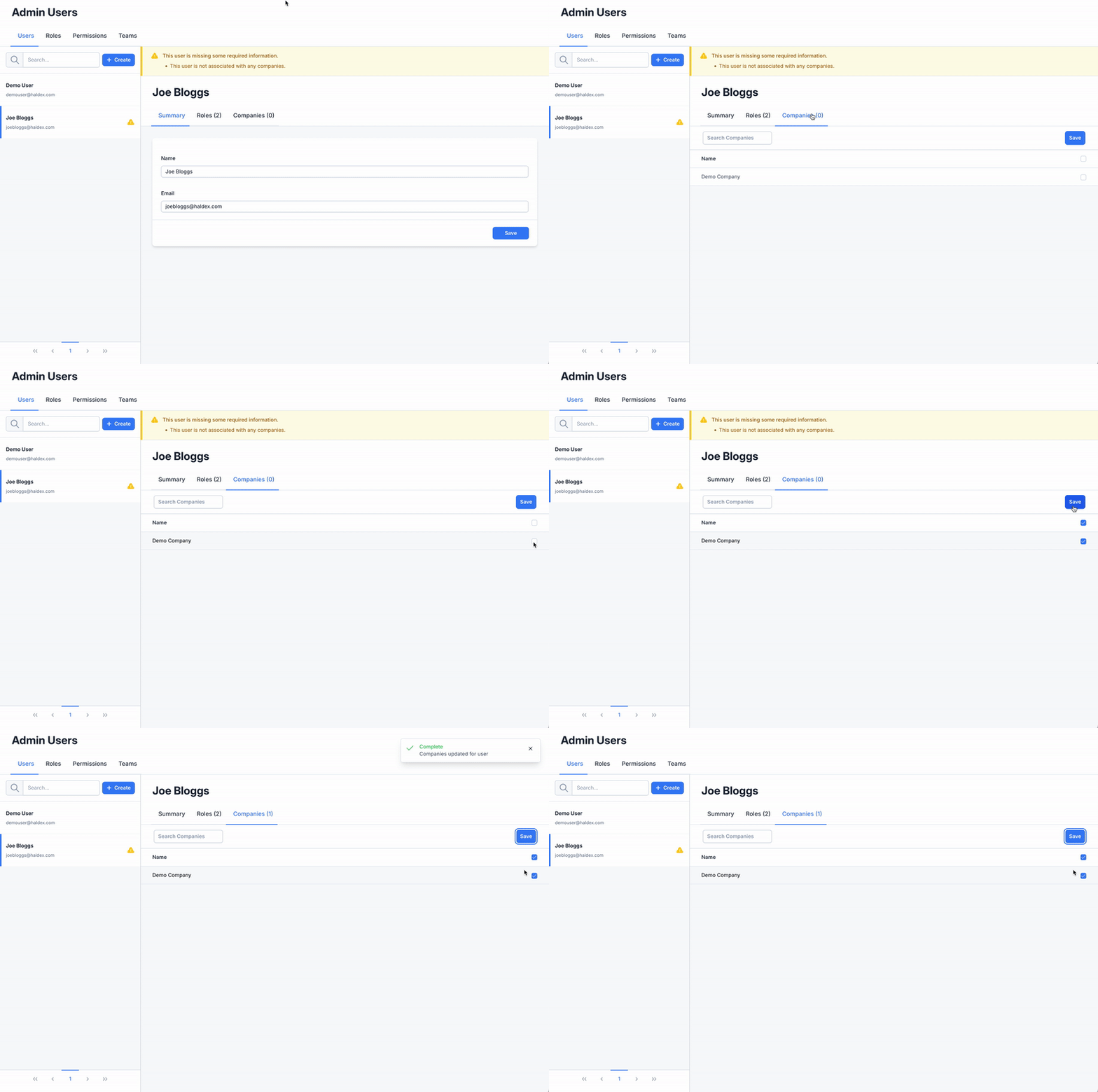
Click the Companies tab
Check the box alongside the company to assign
Uncheck boxes to remove the company from the user
Click Save
Mapping Roles
Click the Roles tab
Click Assign Role
Choose a role from the right slide-over
Click Save
.gif?inst-v=9e673f5d-f9a0-4055-a7ea-2a28bde4b92f)